كيف تُعدّ مؤقت التمرين في Zoom
في الحصة المباشرة، مكان المؤقت هو الشاشة التي يشاهدها الجميع أصلاً، لا هاتف مسنود إلى زجاجة ماء. يرسم تطبيق Zoom العدّ التنازلي واسم التمرين ومعاينة التمرين التالي مباشرة على بث كاميرتك.
الإعداد مرة واحدة فقط: ثبّت التطبيق من Zoom Marketplace، سجّل الدخول، واختر تمريناً بنيته من قبل. بعد ذلك: حمّل، اضغط تشغيل، ودرّب.
التعليق الصوتي في الفيديو باللغة الإنجليزية. الفصول والنص في هذه الصفحة بالعربية.
النص (بالإنجليزية)
- 0:00Go Live puts your workout timer inside Zoom.
- 0:05Open Go Live — watch the guide, and follow the six-step setup.
- 0:11Get Zoom App opens the Zoom Marketplace. Click Add, and it shows up in your Apps panel.
- 0:19In your meeting, open Apps and pick Workout Timer and Overlays.
- 0:25Sign in with your Fit Cut Pro account, and you're in.
- 0:32Start your video — the app waits for the camera.
- 0:40Select the workout you saved in Creator,
- 0:45and hit play. A countdown, then the timer runs on your camera for everyone to see.
- 0:56During rest, the next exercise clip appears.
- 1:01Customize it live: cycle styles and openers,
- 1:06pick your brand colors,
- 1:09and set how big the exercise clip shows.
- 1:15Space plays and pauses. Now go live.
دروس أخرى
الدروس الثمانية ←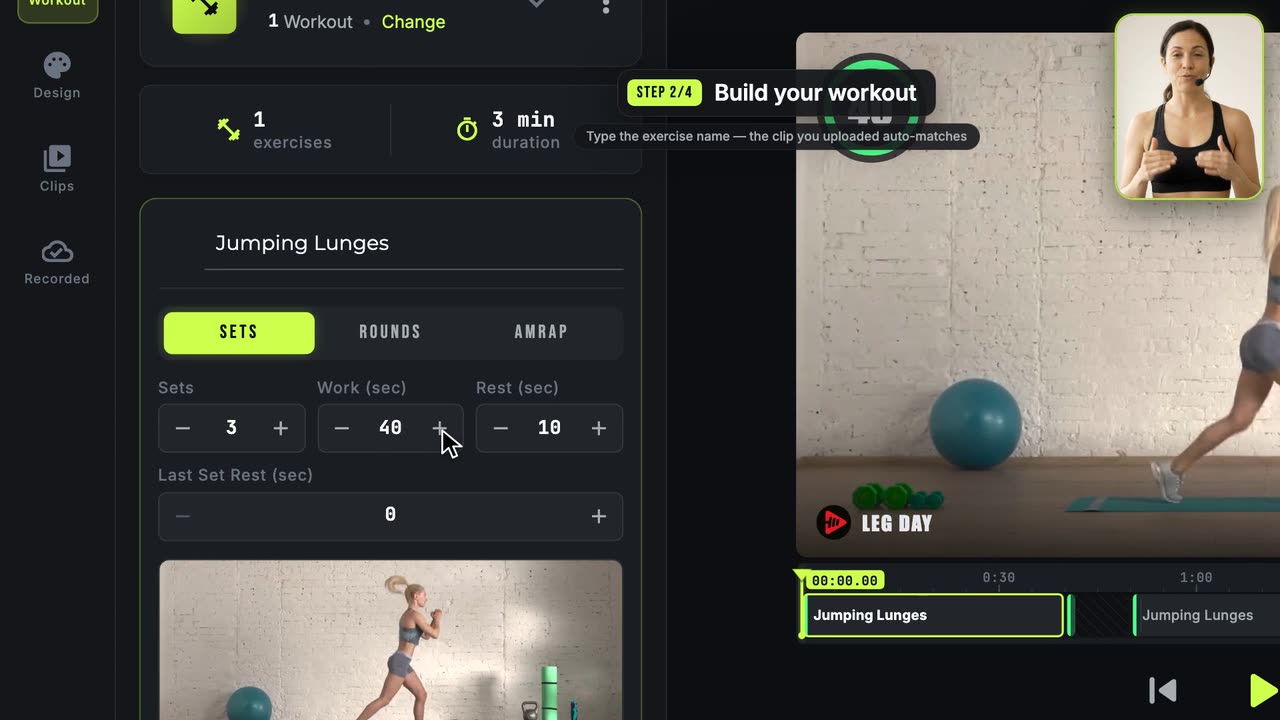 1:57
1:57كيف تنشئ أول فيديو تمرين لك
المسار الكامل من البداية إلى النهاية: المقاطع، التمرين، التصميم، التصدير.
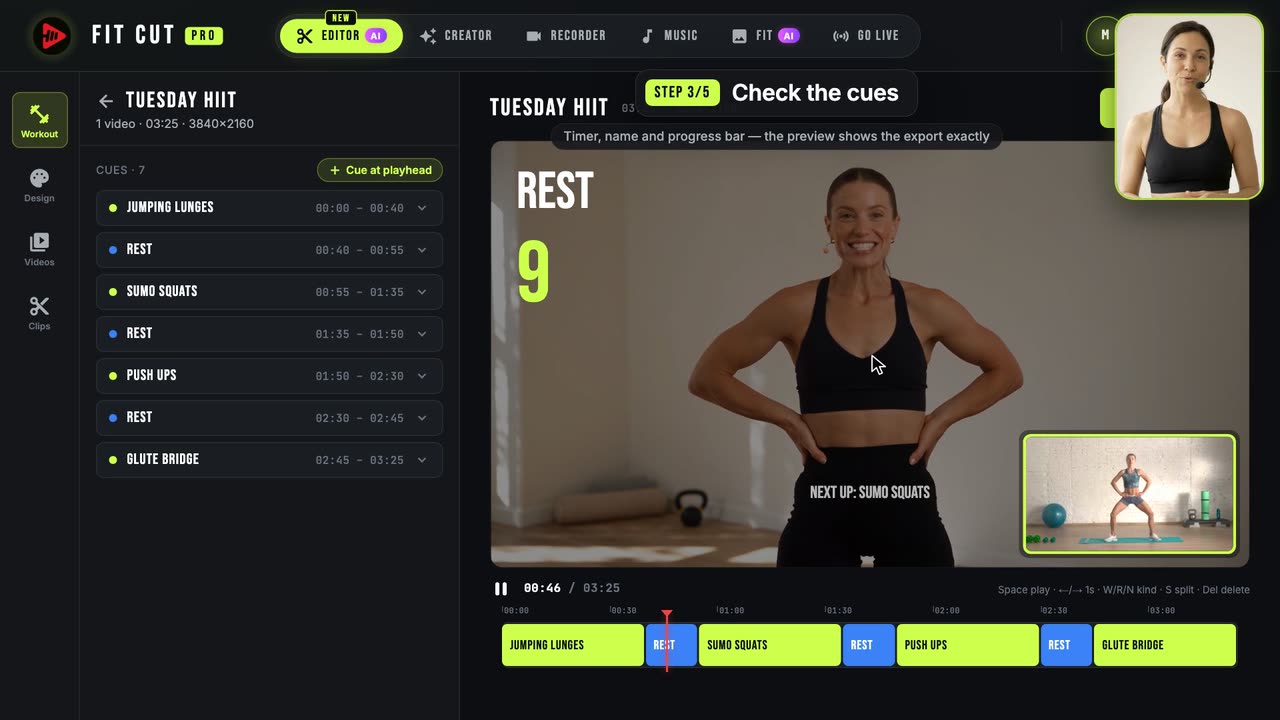 1:35
1:35كيف تضيف المؤقتات إلى فيديو تمرين تلقائيًا
تسجيل واحد يدخل، وفيديو تمرين جاهز يخرج: الذكاء الاصطناعي يجد كل تمرين وراحة، وأنت تراجع العلامات وتصدّر.
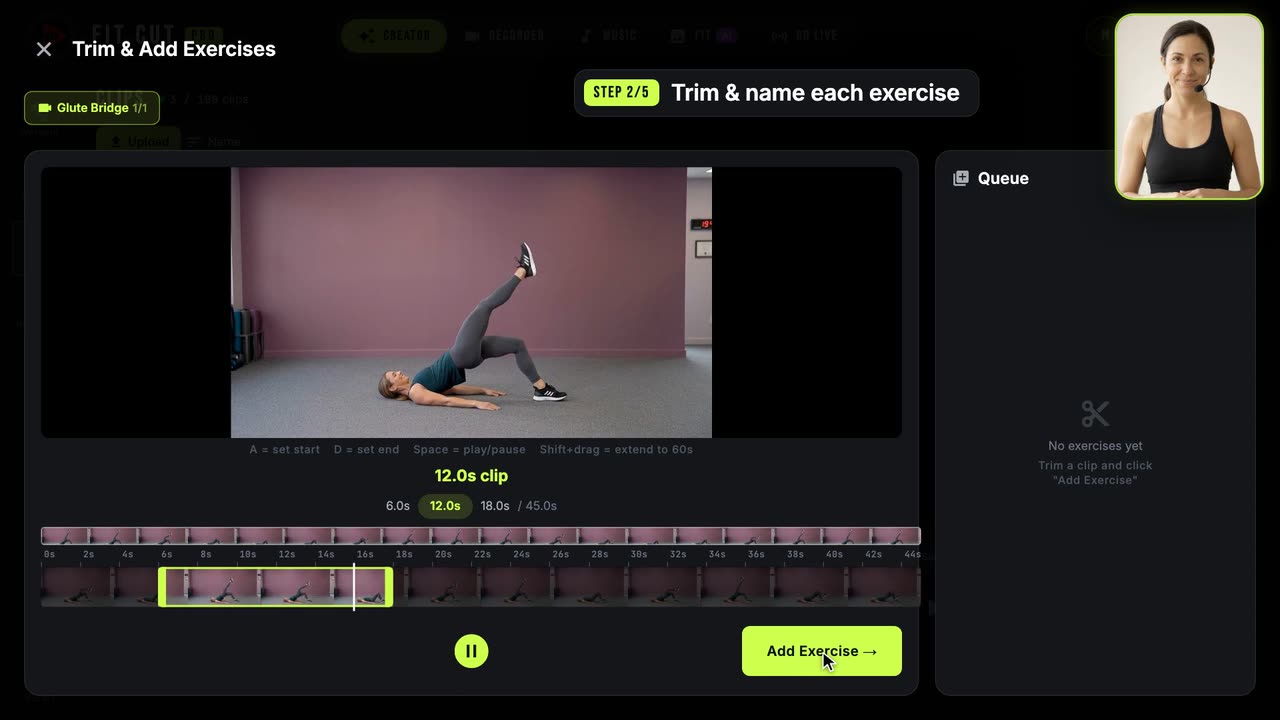 1:29
1:29كيف تبني مكتبة مقاطع التمارين
قصّ تسجيلاً طويلاً واحداً إلى مقاطع تمارين مسماة قابلة لإعادة الاستخدام.