Jak automatycznie dodać timery do wideo treningowego
Ten samouczek jest dla wideo, które już masz. Większość trenerów naciska nagrywanie, prowadzi zajęcia i zostaje z czterdziestominutowym plikiem, którego ręczne cięcie, opisywanie i ustawianie czasów zajęłoby cały wieczór. Edytor bierze dokładnie ten plik, ogląda go tak, jak zrobiłby to montażysta, i zaznacza, gdzie zaczyna się i kończy każde ćwiczenie i każda przerwa.
Zamiast pustego projektu dostajesz listę znaczników na osi czasu. Popraw nazwę, przeciągnij granicę, podziel serię, wybierz projekt, wyeksportuj. Dziewięćdziesiąt sekund wideo, pięć kroków.
Narracja w wideo jest po angielsku. Rozdziały i tekst na tej stronie są po polsku.
Transkrypcja (angielski)
- 0:00This is the Editor. Film your class once, and the AI cuts it, times it, and names it.
- 0:07Click New video and pick your recording. One continuous file, MP4 or MOV.
- 0:15Give it a name. The upload runs on its own while you keep working.
- 0:22Now click Analyze with AI. The Editor watches the whole video and finds every exercise and rest.
- 0:30A thirty-minute class takes a few minutes. Then your cues appear on the timeline.
- 0:38Each cue is an exercise or a rest. The preview shows exactly what the export will look like.
- 0:46Near the end of a rest, a small window shows the next exercise, so nobody scrambles.
- 0:54Click a cue to rename it, drag its edge on the timeline, or split it in two.
- 1:02Under Design, pick a timer style, your colours, font and logo. Every Creator style works here.
- 1:14Click Export MP4. New exercises can go straight into your Clips library.
- 1:21The video renders on our servers, downloads automatically, and lands under Recorded.
- 1:27Film once, check the cues, export. That's the Editor. Try it free at app.fitcutpro.com.
Więcej samouczków
Wszystkie osiem →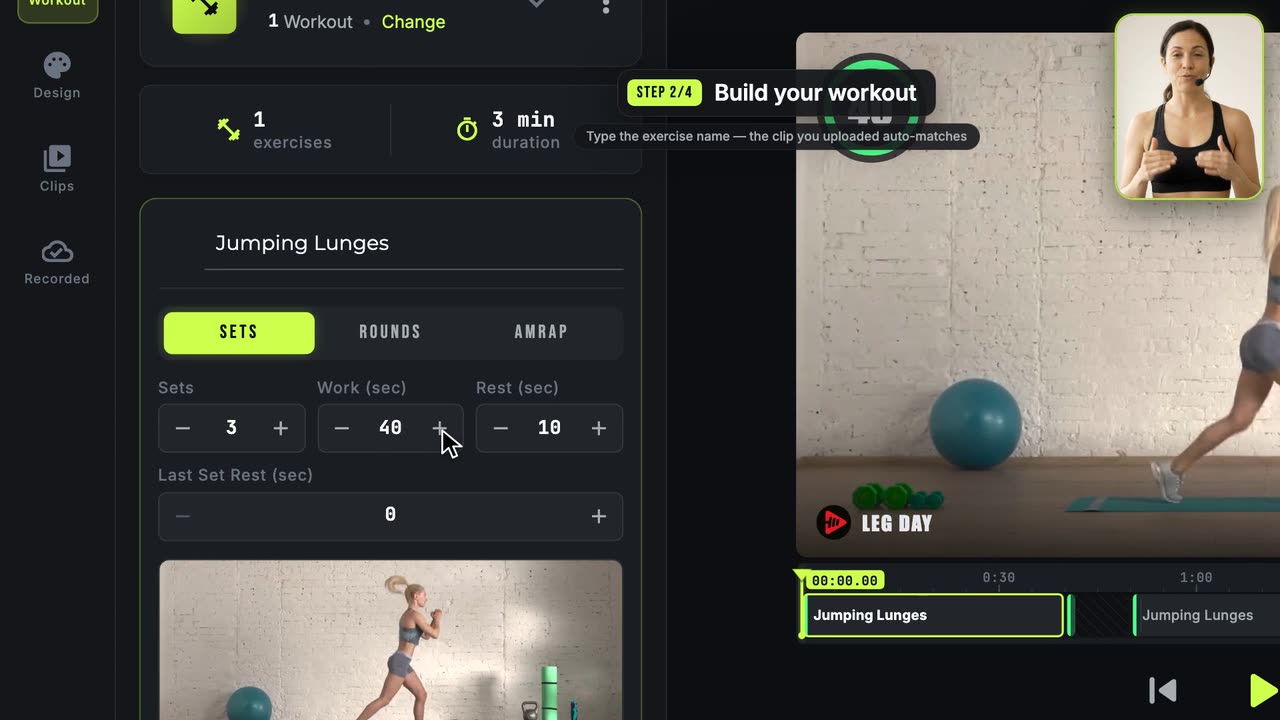 1:57
1:57Jak stworzyć swoje pierwsze wideo treningowe
Cała ścieżka od początku do końca: klipy, trening, wygląd, eksport.
 1:29
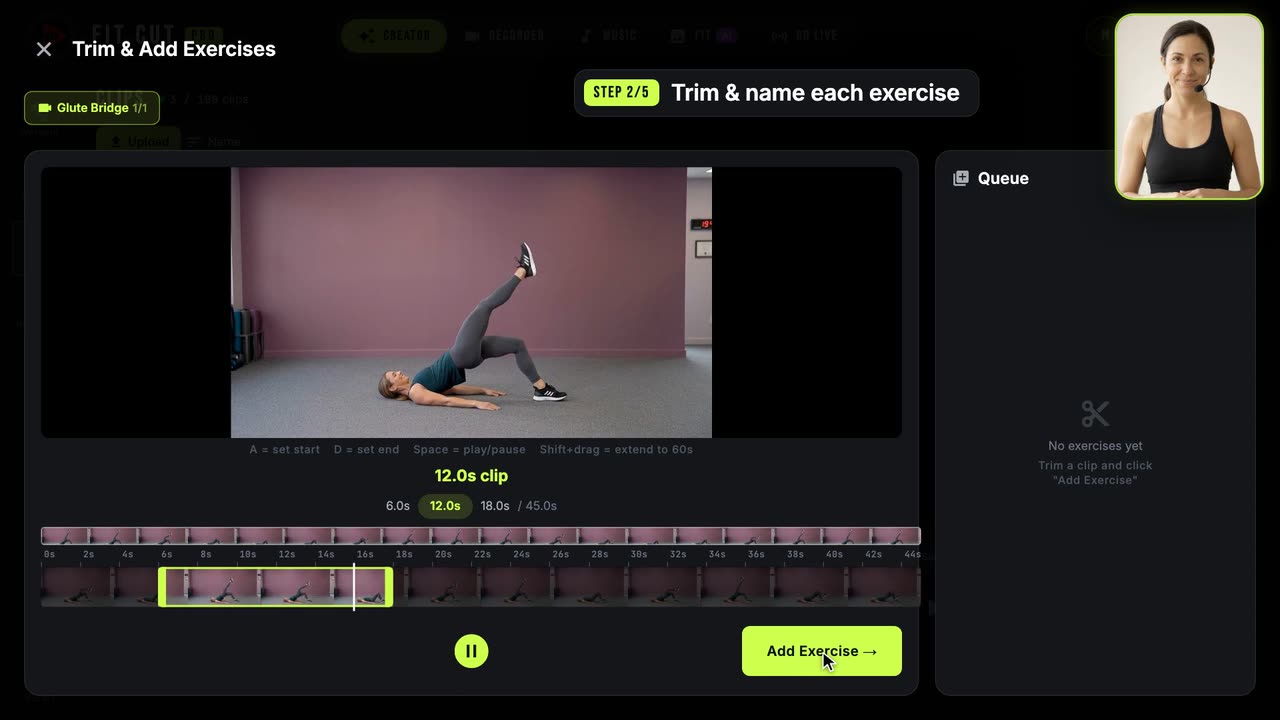
1:29Jak zbudować bibliotekę klipów z ćwiczeniami
Potnij jedno długie nagranie na nazwane klipy z ćwiczeniami do wielokrotnego użytku.
 1:13
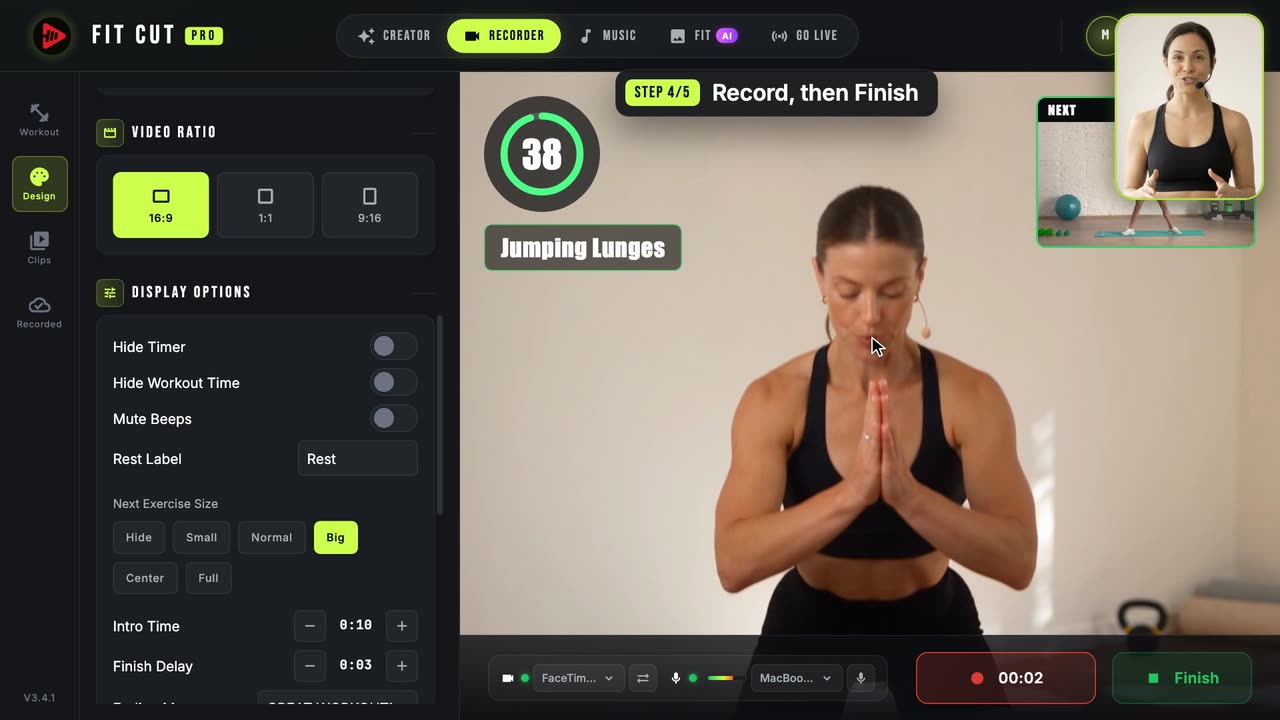
1:13Jak nagrać wideo treningowe z timerem na żywo
Nagraj siebie z timerem i grafikami już wtopionymi w obraz.