如何自动为训练视频添加计时器
这个教程是为你已经拍好的视频准备的。大多数教练按下录制、上完课,最后得到一个四十分钟的文件,手动剪辑、标注和计时要花上一整晚。编辑器接手的正是这个文件:它像人类剪辑师一样看完视频,标出每个动作和每段休息的起止位置。
你拿到的不是空白项目,而是时间线上的一组标记。改个名字、拖动边界、拆分一组、选个设计、导出。90 秒视频,五个步骤。
视频讲解为英文。本页的章节和文字为中文。
文字稿(英文)
- 0:00This is the Editor. Film your class once, and the AI cuts it, times it, and names it.
- 0:07Click New video and pick your recording. One continuous file, MP4 or MOV.
- 0:15Give it a name. The upload runs on its own while you keep working.
- 0:22Now click Analyze with AI. The Editor watches the whole video and finds every exercise and rest.
- 0:30A thirty-minute class takes a few minutes. Then your cues appear on the timeline.
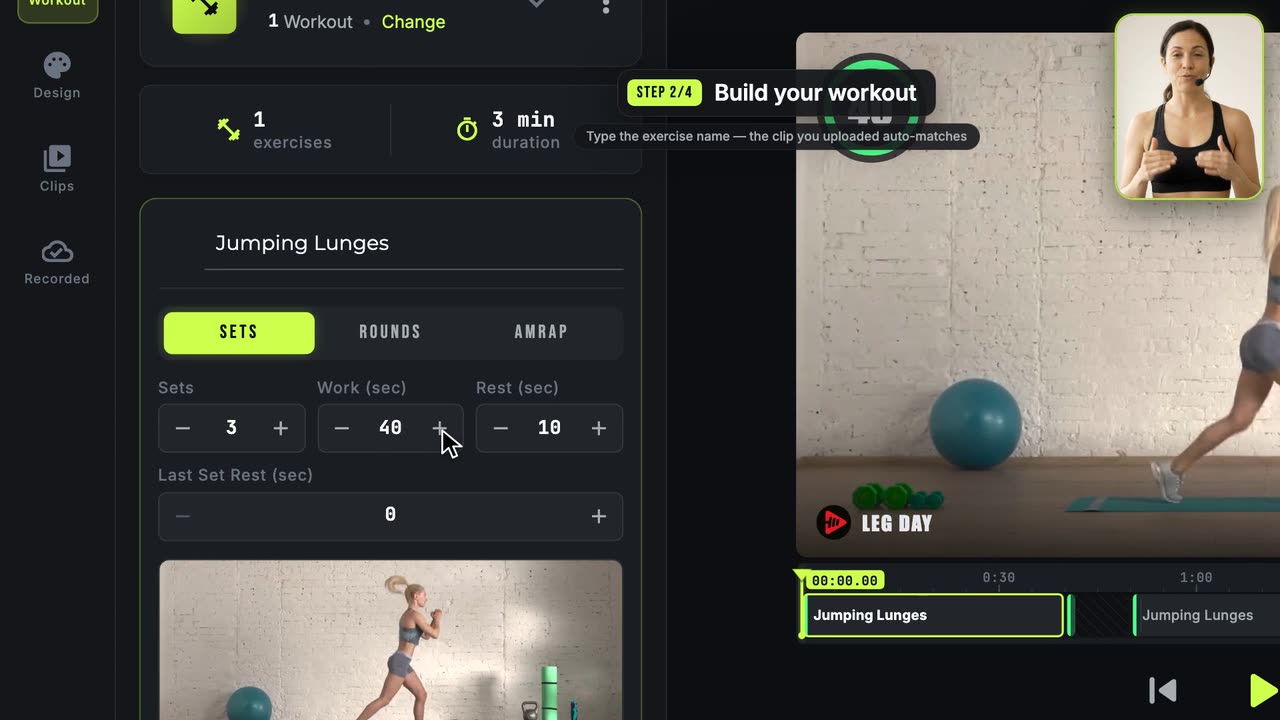
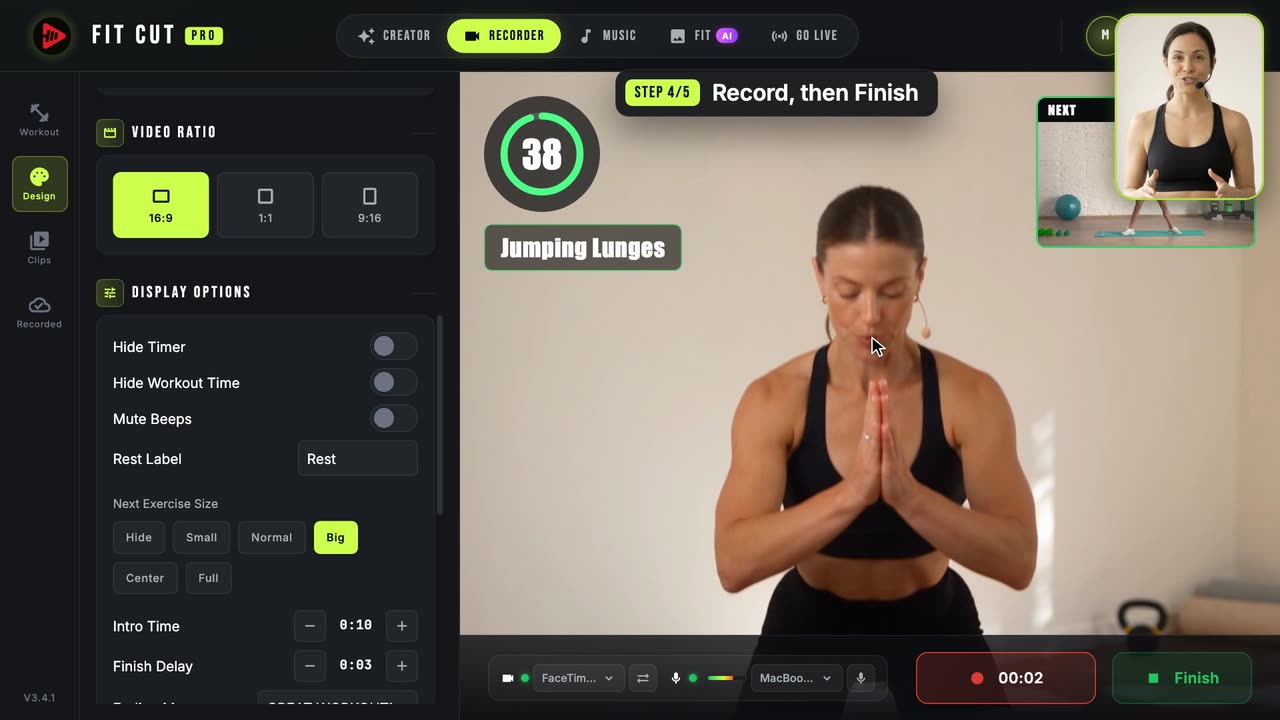
- 0:38Each cue is an exercise or a rest. The preview shows exactly what the export will look like.
- 0:46Near the end of a rest, a small window shows the next exercise, so nobody scrambles.
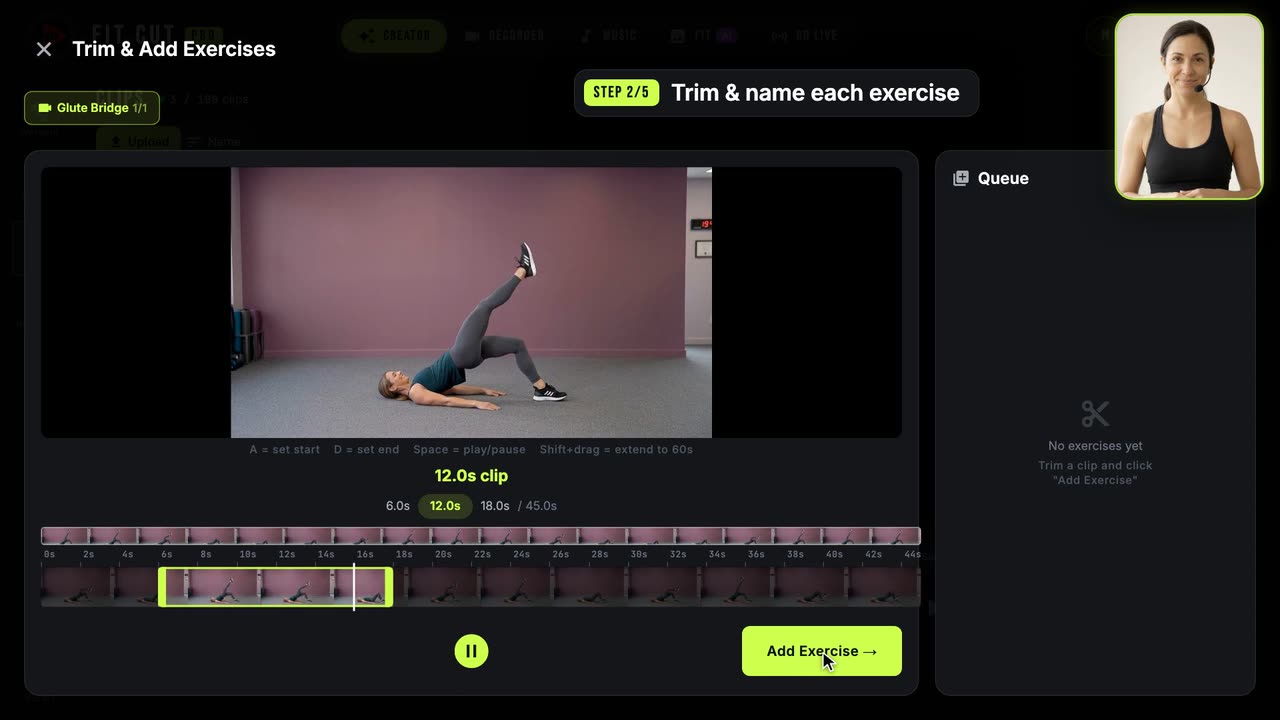
- 0:54Click a cue to rename it, drag its edge on the timeline, or split it in two.
- 1:02Under Design, pick a timer style, your colours, font and logo. Every Creator style works here.
- 1:14Click Export MP4. New exercises can go straight into your Clips library.
- 1:21The video renders on our servers, downloads automatically, and lands under Recorded.
- 1:27Film once, check the cues, export. That's the Editor. Try it free at app.fitcutpro.com.