How to Set Up the Zoom Workout Timer
In a live class the timer belongs on the screen everyone is already watching, not on a phone propped against a water bottle. The Zoom app draws the countdown, the exercise name and the next-up preview straight onto your camera feed.
Setup is a one-time job: install the app from the Zoom Marketplace, sign in, and pick a workout you already built. After that it is load, press play, coach.
Transcript
- 0:00Go Live puts your workout timer inside Zoom.
- 0:05Open Go Live — watch the guide, and follow the six-step setup.
- 0:11Get Zoom App opens the Zoom Marketplace. Click Add, and it shows up in your Apps panel.
- 0:19In your meeting, open Apps and pick Workout Timer and Overlays.
- 0:25Sign in with your Fit Cut Pro account, and you're in.
- 0:32Start your video — the app waits for the camera.
- 0:40Select the workout you saved in Creator,
- 0:45and hit play. A countdown, then the timer runs on your camera for everyone to see.
- 0:56During rest, the next exercise clip appears.
- 1:01Customize it live: cycle styles and openers,
- 1:06pick your brand colors,
- 1:09and set how big the exercise clip shows.
- 1:15Space plays and pauses. Now go live.
More tutorials
All eight →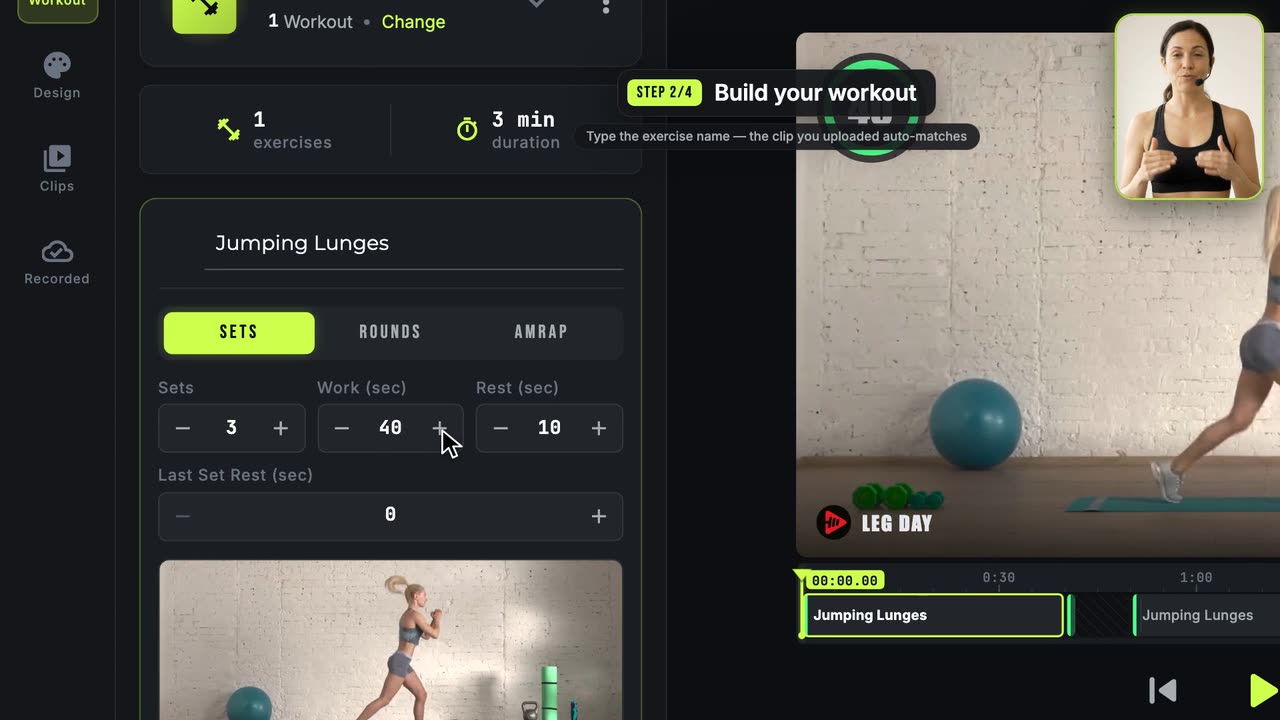 1:57
1:57How to Make Your First Workout Video
The complete golden path, start to finish: clips, workout, design, export.
 1:35
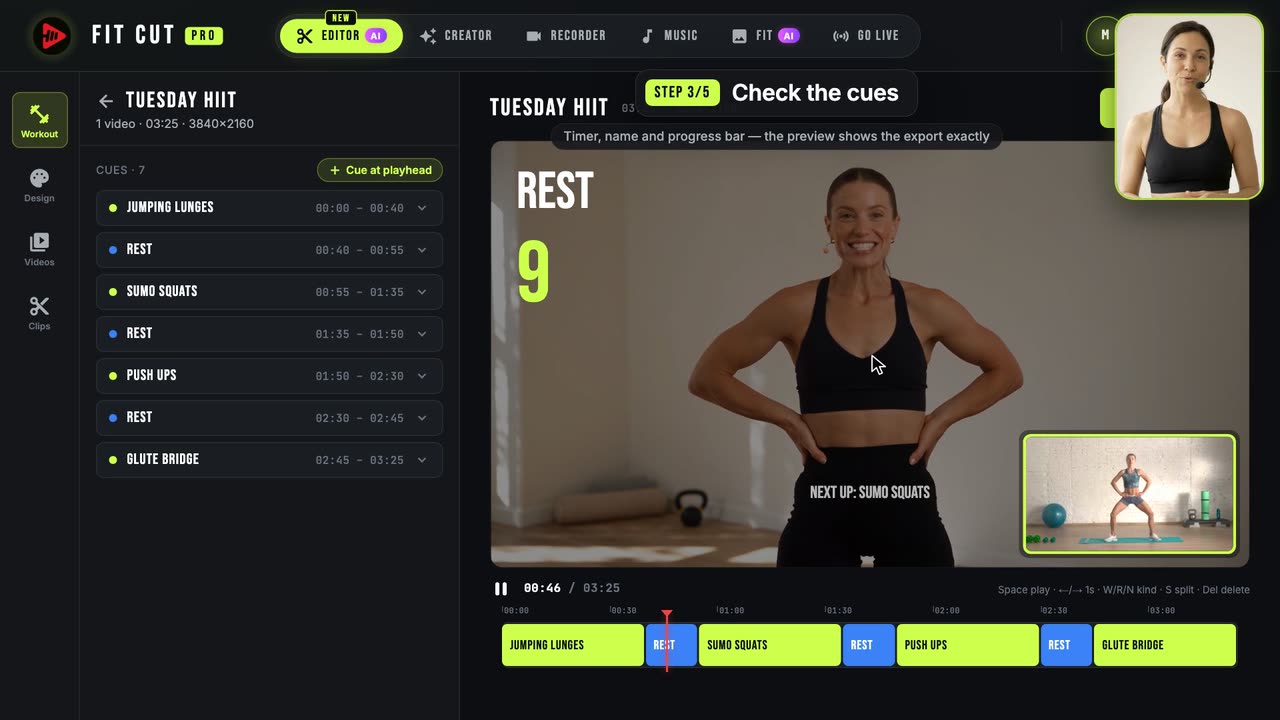
1:35How to Add Timers to a Workout Video Automatically
One recording in, a finished workout video out: the AI finds every exercise and rest, you check the cues and export.
 1:29
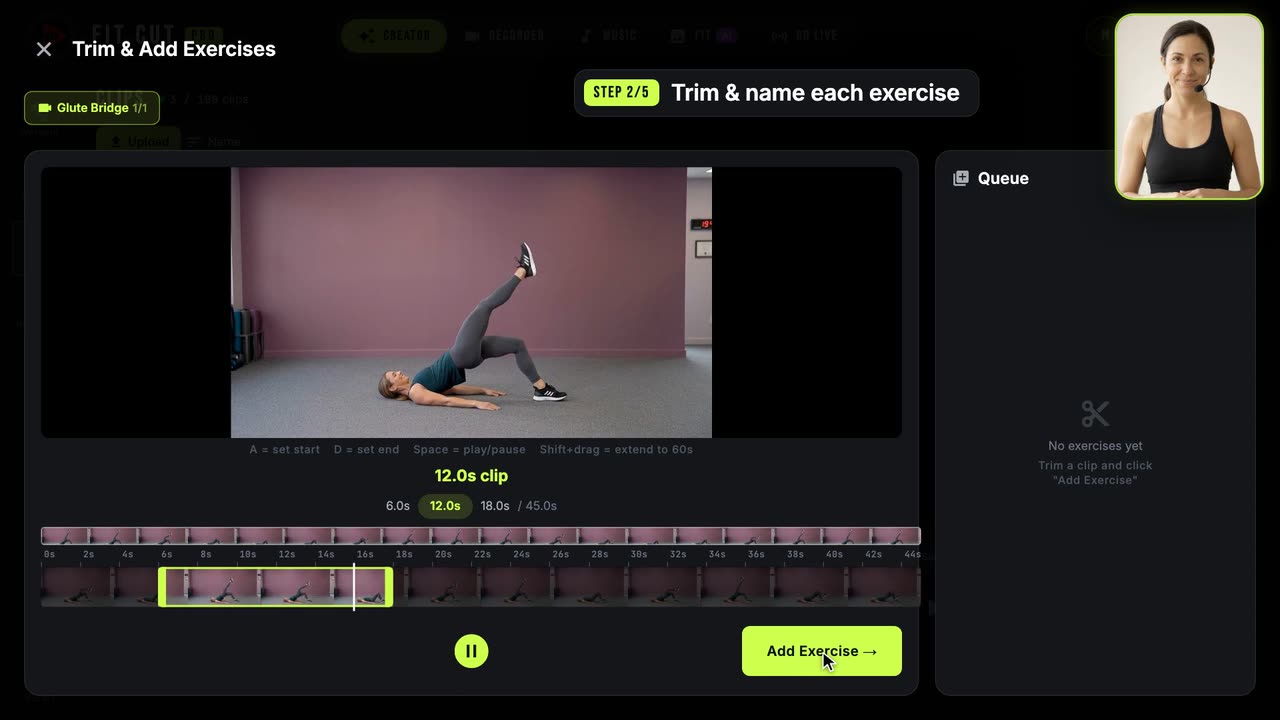
1:29How to Build Your Exercise Clip Library
Cut one long recording into named, reusable exercise clips.