The Zoom Workout Timer App for Live Online Classes
Fit Cut Pro's official Zoom app takes your workout plan and displays it as live graphics on your Zoom camera: countdown timers, exercise names, next-exercise previews, rest screens and your logo. Your participants see a broadcast-quality class. You stop calling out the time.
Included in every plan. Participants need nothing but Zoom.
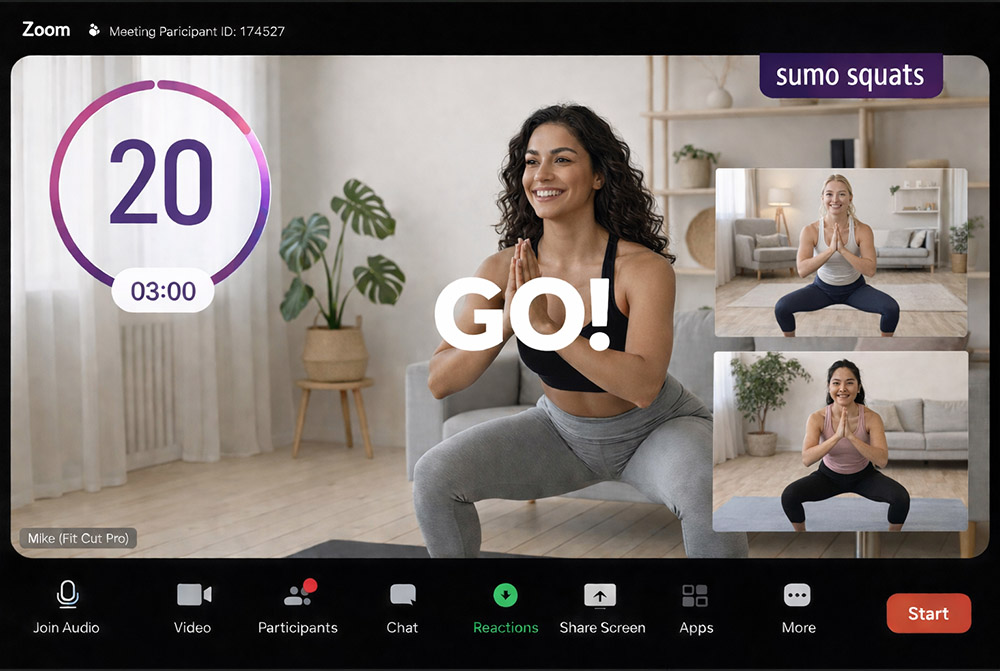
What a Zoom workout looks like with the timer on screen
A live class on Zoom normally means the trainer watching a phone timer, shouting "ten seconds" and hoping the audio holds up. With the Zoom workout timer app, the clock is on the screen every participant is already looking at.
Build the workout once on the website with exercises, durations, rest periods and rounds. In the meeting, pick it from a dropdown and press play. The overlay counts down each interval, names the exercise, previews the next one during rest, and shows a demo clip if you have uploaded one. AMRAP and circuit formats show the whole round on one screen.
Everything is rendered into your camera feed, so it works for one-to-one coaching, group classes and hybrid gym sessions, on any device your participants use.
Set up the Zoom workout timer in seven steps
About ten minutes the first time. After that, it is "load workout, press play".
- 1
Install and open the Zoom app
Install "Workout Timer & Overlays by Fit Cut Pro" from the Zoom App Marketplace, join a meeting, click Apps on the bottom panel (or More, the three-dot button) and select the workout timer app.
- 2
Create your Fit Cut Pro account
If you do not have one, use the link below the login button to sign up on the website. Use the email and password option rather than Google so the Zoom app can sign you in.
- 3
Build the workout on the website
Open the Workouts tab, create a new workout, add your exercises with durations and rest, give it a title and save it.
- 4
Log in inside Zoom
Back in the meeting with the app open, enter your email and password.
- 5
Start your camera and load the workout
Once your camera is on, choose the workout from the dropdown. The timer and graphics appear over your video.
- 6
Choose colours, then press play
Pick your brand colour and font, hit the play button at the bottom, and coach while the overlay runs the class.
- 7
Bonus: add exercise clips
Upload demo clips for your exercises on the website. Next time you load the workout in Zoom they play during rest periods. Restart the app once to pick them up.
Removing the Zoom app
Sign in at marketplace.zoom.us, open Manage → Added Apps, find Workout Timer & Overlays by Fit Cut Pro and click Remove. The overlay disappears from your meetings straight away. Your workouts and clips stay in your Fit Cut Pro account; to delete those too, use account deletion or email support@fitcutpro.com.
Everything the Zoom overlay does
Live countdown timer
Work and rest intervals count down on your camera feed with transitions between exercises. Participants follow the clock instead of your voice.
Next exercise preview and demo clips
The next exercise is previewed before the rest ends, with your uploaded demo clip playing so nobody guesses what comes next.
AMRAP and circuit display
Every movement and rep count on one screen for AMRAP, EMOM and circuit classes, so participants cycle rounds on their own.
Your brand colour and font
Choose the colour and font inside the app. The overlay matches your studio's look for the whole session.
Nothing for participants to install
The graphics are part of your video feed. Phones, tablets, laptops and TVs all show the same class.
Official Zoom Marketplace app
Installed from the Zoom App Marketplace and opened from the Apps panel inside any meeting, on every Fit Cut Pro plan.
One workout plan, live and on demand
The plan you run on Zoom is the same plan the Workout Recorder films with graphics on screen and the Workout Video Editor turns into an on-demand video from your clip library. Teach it live on Monday, publish the replay on Tuesday.
Coming from a standalone timer? See how it compares with IntervalCam, Seconds Pro and Smart WOD Timer.
Zoom workout timer FAQ
See the Zoom timer set up end to end
Installing the Zoom app, signing in, picking a saved workout, and the countdown running on the camera while the class follows along.